

Help center
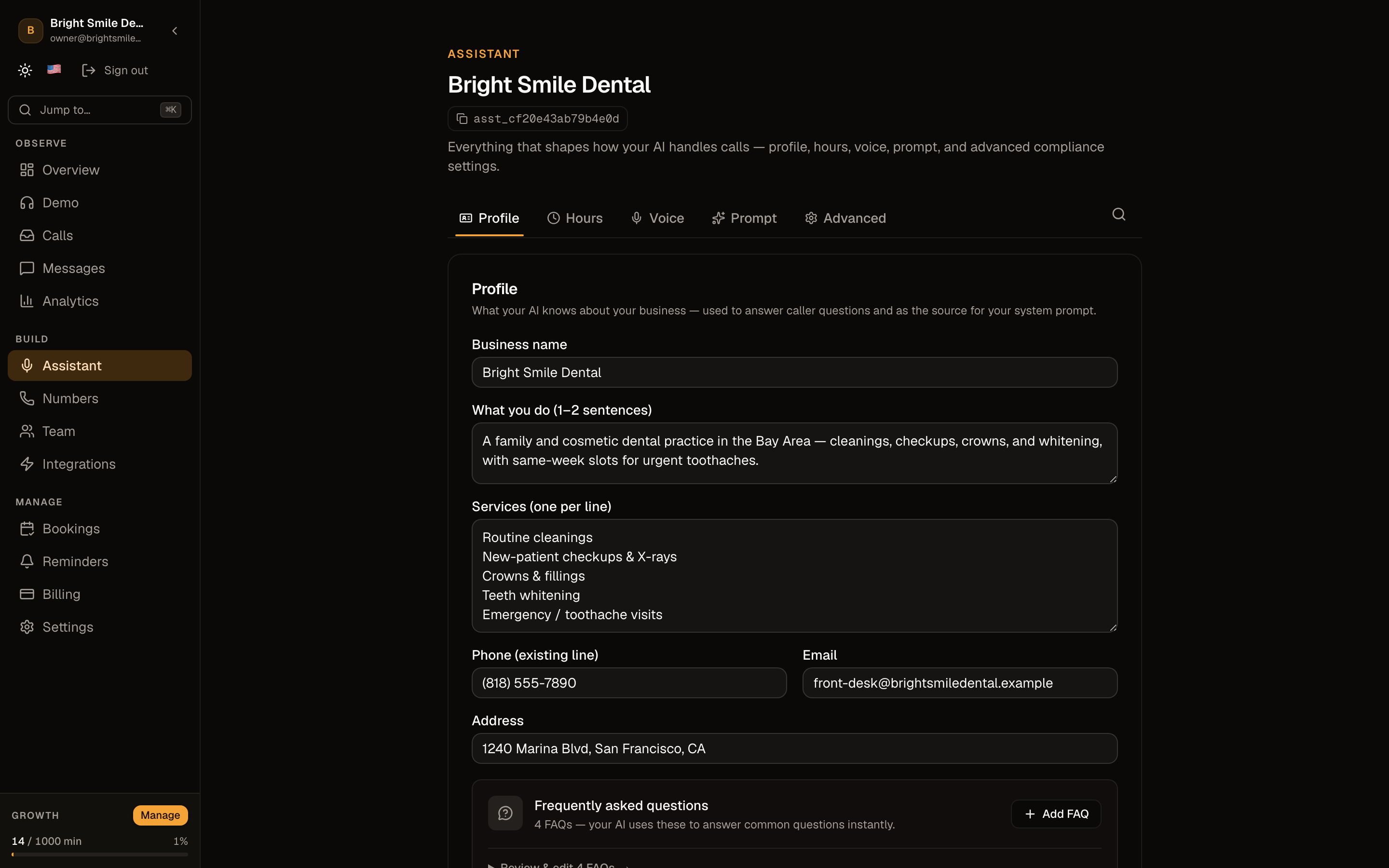
Customize your receptionist (the assistant editor)
5 min · updated Jul 24, 2026
In short
The assistant editor is where you shape everything the AI knows and how it sounds — business info, hours, services, FAQs, voice, language, personality, and, on paid plans, the AI model and custom instructions. Changes sync to your live receptionist.
01Open the assistant editor
Go to Assistant in your dashboard. It's organised into tabs — Profile, Hours, Voice, Prompt, and Advanced — and a change saves and syncs to your live receptionist right away.
02Profile and Hours
Under Profile, edit your business name, description, services, contact details, and the FAQs the AI answers from. Under Hours, set your open hours so the AI knows when you're open and what counts as after-hours.
03Voice, greeting, and language
In the Voice tab, pick the voice callers hear, edit the greeting (first message), and set the caller language. You can set one language for everyone, or choose the bilingual English + Español mode — the AI detects each caller's language from their first words and replies entirely in it, switching if they switch.
Bilingual mode currently covers English and Spanish; more language pairs are on the way.
04Personality, model, and custom instructions
In the Prompt tab, set the personality (how focused vs. conversational the AI is). On paid plans you can also choose the AI model — the fast default is best for live calls — and add custom instructions that layer on top of the built-in prompt.
Choosing the model and adding custom instructions are Starter-plan-and-up features. Custom instructions add to the base prompt rather than replacing it, so you can't accidentally break the receptionist.
05Advanced and transfer
The Advanced tab holds the recording-consent setting and warm human transfer — turn on transfer and set the backup numbers so the AI can connect urgent callers to a person mid-call.
Frequently asked questions
Do changes affect calls immediately?
Yes. Saving in the assistant editor syncs the change to your live receptionist, so the next caller gets the updated behaviour.
Can the AI answer callers in Spanish?
Yes — set an assistant's language to Spanish so it speaks Spanish to everyone, or choose the bilingual English + Español mode so it detects each caller's language and replies in it, switching mid-call if the caller does. More language pairs are coming.
See also
Related guides
Ready to try it? Get a working AI receptionist in about five minutes.
Start free