

Help center
Manage bookings: confirm, edit, and archive
3 min · updated Jul 24, 2026
In short
When a caller books, it lands in your Bookings inbox. Confirm it to lock it in (and schedule a reminder), edit the details, or archive it — all without leaving the dashboard.
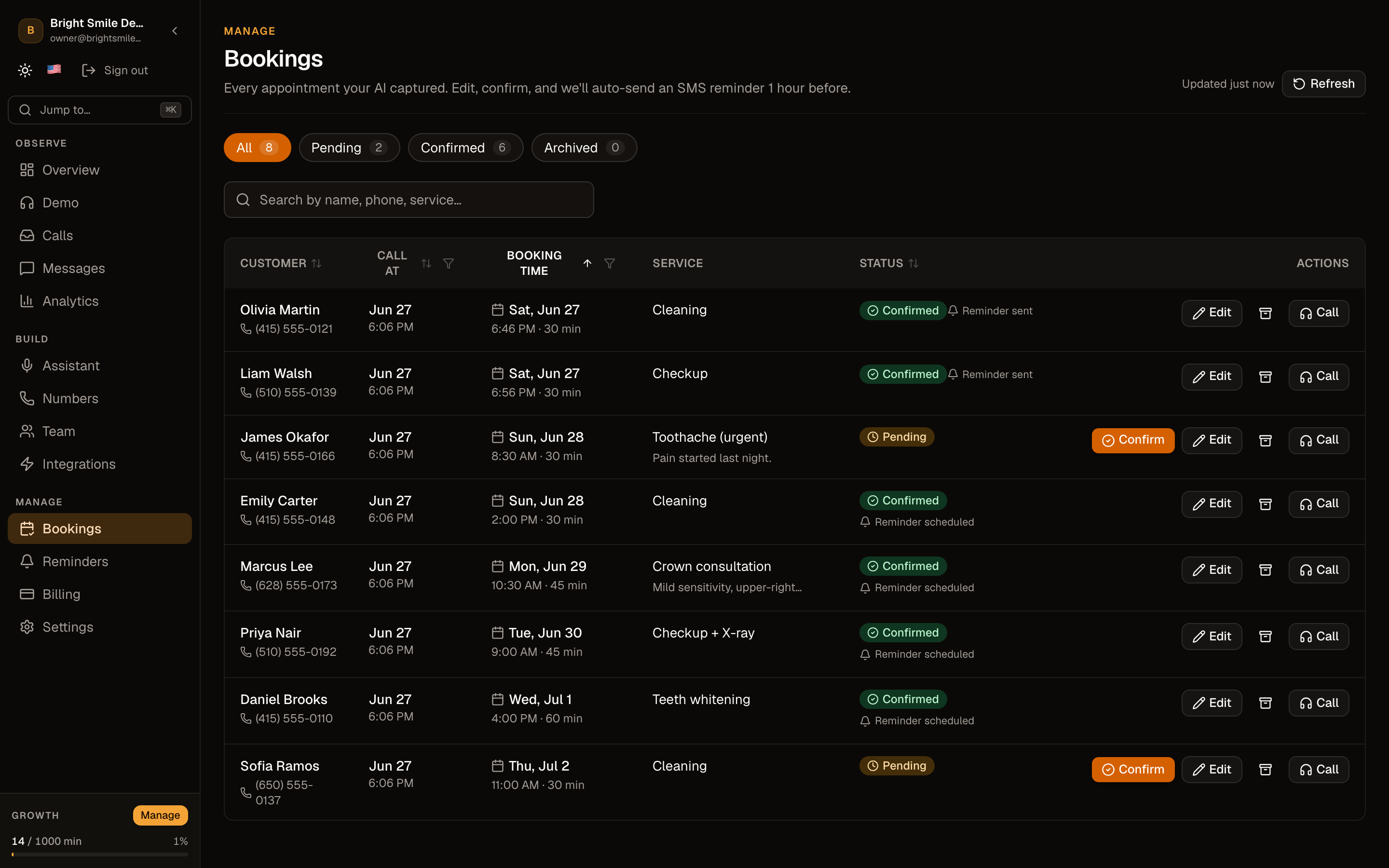
01Open your Bookings inbox
Go to Bookings in the dashboard. Every appointment Ahoya captured on a call is here, with the caller, the requested time, and the details.
The editable Bookings inbox is a Growth-plan feature. On lower plans, booking details still appear on the call itself.
02Confirm a booking
Confirming locks the appointment in and — if it has a phone number and a start time — schedules an SMS reminder to go out an hour before.
03Edit the details
Open a booking to fix the time, service, or contact details the AI captured. Changes save immediately.
04Archive what's handled
Archive bookings you've dealt with to keep the inbox focused on what still needs action. You can restore an archived booking if you need it back.
Frequently asked questions
Does confirming a booking notify the customer?
Confirming schedules an appointment-reminder SMS for one hour before the start time (when the booking has a number and a time). See the SMS reminders guide for the delivery details.
See also
Related guides
Ready to try it? Get a working AI receptionist in about five minutes.
Start free