

Help center
Onboarding: paste your website, go live in ~5 minutes
5 min · updated Jul 24, 2026
In short
Ahoya reads your website to draft your receptionist, you review the details and pick a voice, and we provision a real phone number — end to end in about five minutes.
01Paste your website URL
On the first step, paste your business website. Ahoya scrapes it for your services, hours, and common questions so the receptionist starts from real information about your business.
02Review your business profile
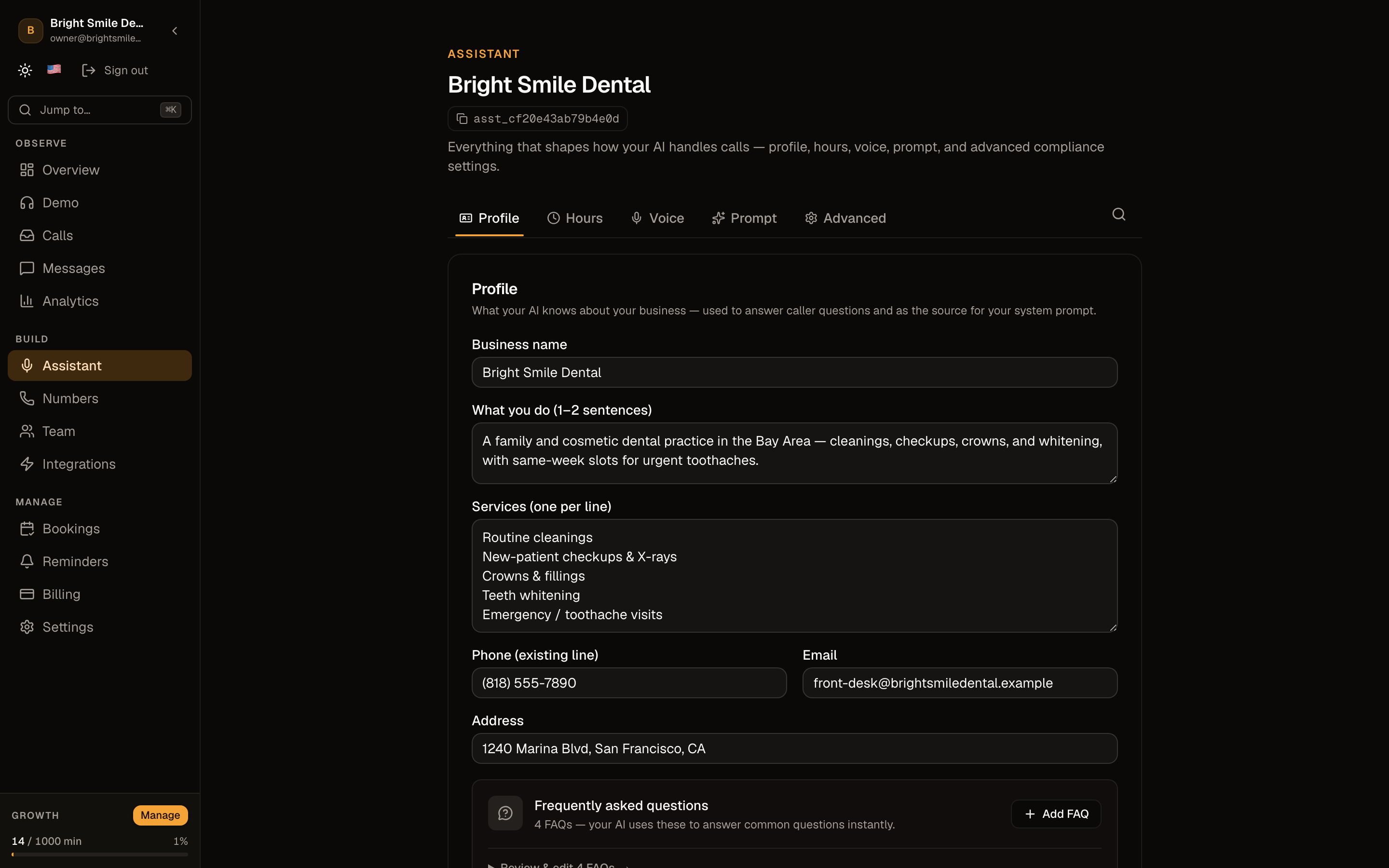
Check what we pulled in — business name, services, and details — and edit anything that's off. The more accurate this is, the better your receptionist answers.
Thin or missing site? Add a short description and your services here so the assistant has enough to work with.
03Pick your industry
Choose the vertical that fits your business (dental, HVAC, salon, and so on). This tunes what the receptionist captures and treats as urgent, using a template built for that trade.
04Choose a voice
Preview the natural voices and pick the one your callers will hear. Ahoya suggests one for your industry, and you can change it any time later in the assistant editor.
05We provision your number and go live
Ahoya creates your assistant and attaches it to a real phone number. When the go-live step finishes, call the number yourself to hear it answer.
On the free trial you get a number from our pool instantly; you can forward your existing business line to it afterwards.
Frequently asked questions
What if the scrape misses something?
Everything is editable — on the profile step during onboarding, and afterwards in the assistant editor in your dashboard. Nothing is locked in.
Can I change the voice or details later?
Yes. Open Assistant in your dashboard to change the voice, business info, hours, and FAQs at any time; changes sync to your live receptionist.
See also
Related guides
Ready to try it? Get a working AI receptionist in about five minutes.
Start free